Introduction
When Cyberpunk 2077 first launched, it became infamous for its bugs and poor performance. The game pushed technology far beyond what most PC systems could handle at the time.
However, after years of dedicated updates and optimization by CD PROJEKT RED, the situation has changed dramatically. With the release of Cyberpunk 2077: Phantom Liberty, the game has evolved into a highly polished experience.
Today, Cyberpunk 2077 no longer requires ultra-high-end hardware. It now runs smoothly on mid-range PCs while maintaining impressive visual quality. This marks the true realization of the game’s next-generation RPG vision.
In this article, we provide a complete and up-to-date graphics optimization guide specifically designed for the Phantom Liberty expansion. Whether you are exploring Night City for the first time or returning after a long break, this guide helps you achieve the best balance between performance and visuals. Our goal is to help you experience the game exactly as it was meant to be played.
Graphics Comparison
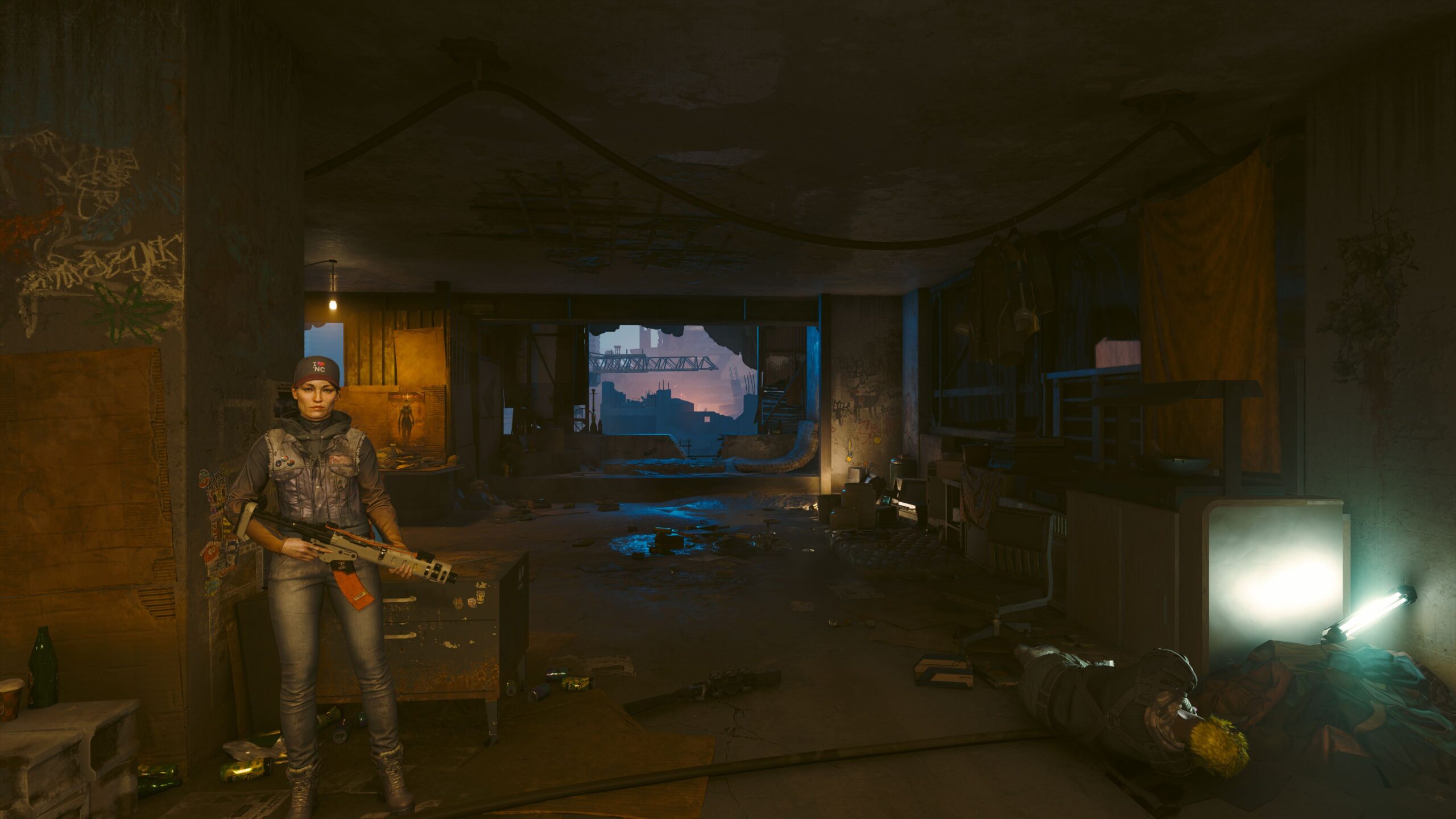
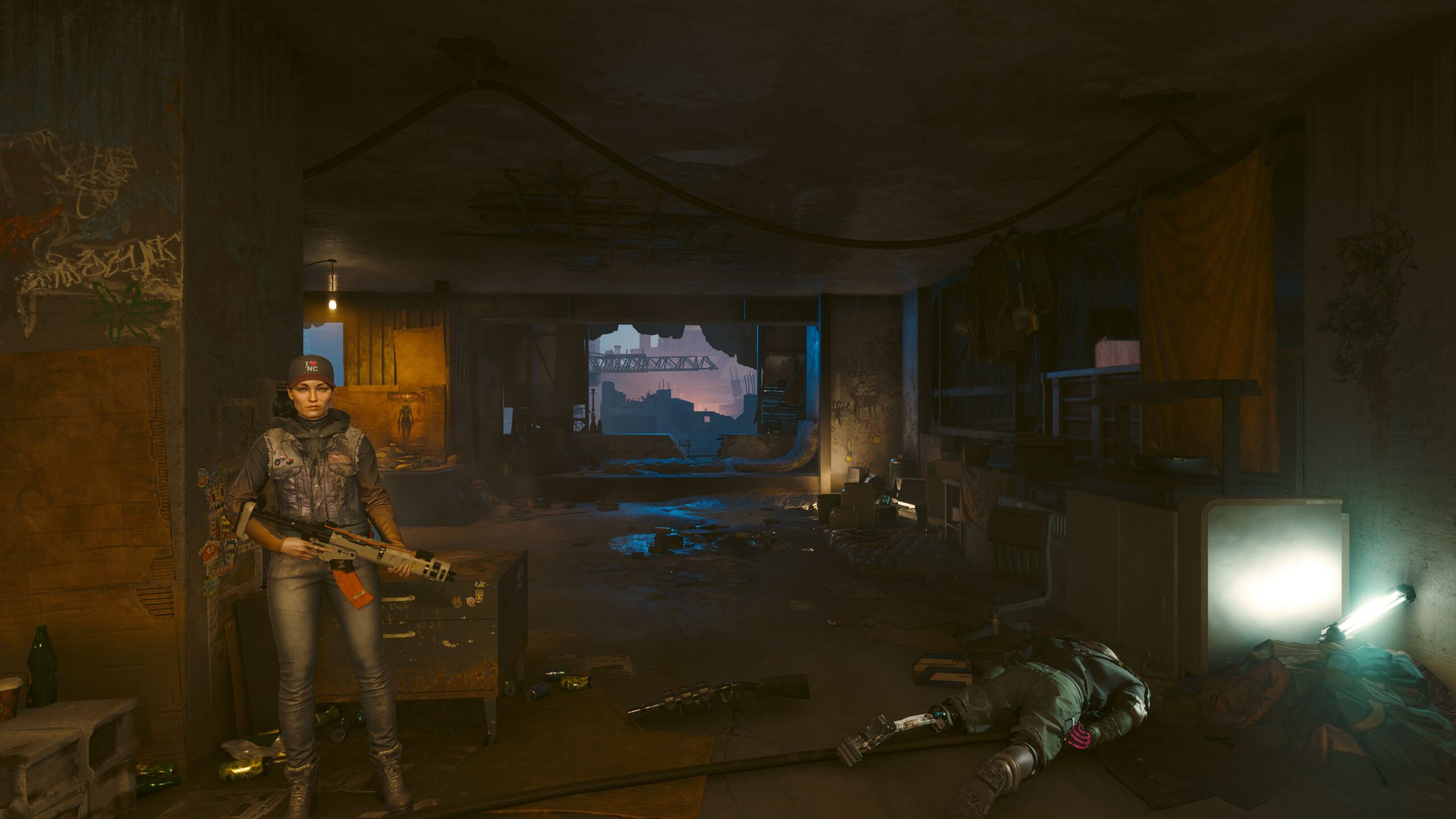
▲ You can move the slider left and right.
Performance Comparison
| Preset | Avg | 1% Low | Gain |
|---|---|---|---|
| Ultra | 50 | 37 | 0% |
| High | 62 | 45 | +24% |
| Optimized | 72 | 49 | +44% |
| Medium | 75 | 53 | +50% |
| Low | 93 | 59 | +86% |
Benchmark
- Version
- 2.31
- Benchmark
- In-house benchmark
- Test date
- 2026-01-16
Test Rig
- CPU
- Ryzen 5 7600
- GPU
- RTX 3060
- RAM
- 32GB DDR5-6000
- Storage
- Gen4 NVMe SSD
- OS
- Windows 11
- Driver
- 591.59
Analysis
Our benchmarks were conducted using the RTX 3060, one of the most popular GPUs today. At 1080p resolution, maintaining a stable 60 fps proved difficult when using Medium settings or higher. Performance frequently dropped below the target frame rate.
By contrast, applying the optimized graphics settings introduced in this guide delivers a clear improvement. The game reaches an average of 72 fps and remains far more stable. Even in demanding scenes, frame rates are much less likely to fall below 60 fps.
The graphics options with the greatest impact on performance are volumetric effects and screen-space reflections. Fortunately, lowering these settings does not significantly harm visual quality. When compared to the Ultra preset, the differences are barely noticeable unless viewed side by side.
Thanks to these optimizations, the game achieves nearly a 50% performance boost while preserving almost the same visual fidelity. For this reason, we confidently recommend using the optimized graphics settings outlined in this article.
Settings Table
Graphics Settings
| Setting | Value |
|---|---|
| Texture Quality | High |
| Contact Shadows | On |
| Improved Facial Lighting Geometry | On |
| Anisotropic Filter | 16 |
| Local Shadow Mesh Quality | Medium |
| Local Shadow Quality | High |
| Cascaded Shadows Range | High |
| Cascaded Shadows Resolution | High |
| Distant Shadows Resolution | High |
| Volumetric Fog Resolution | Medium |
| Volumetric Cloud Quality | Medium |
| Max Dynamic Decals | Ultra |
| Screen Space Reflections Quality | Medium |
| Subsurface Scattering Quality | High |
| Ambient Occlusion | High |
| Color Precision | Medium |
| Mirror Quality | Medium |
| Level Of Detail | High |
| Crowd Density | High |